Client List & Add/Edit
Accessing the Client List
In the sidebar, click Clients → List.
Searching and Exporting
Use the search box to filter the list by name or ID. Export buttons at the top of the panel let you download the list as Excel, CSV, or PDF, or send it to Print.
Viewing Full Client Details
Each row has a Details button alongside Edit — click it to open the Client Details screen, which shows the client's full profile, their client-portal registration status, and a password-reset action for their portal login.
Adding a Client
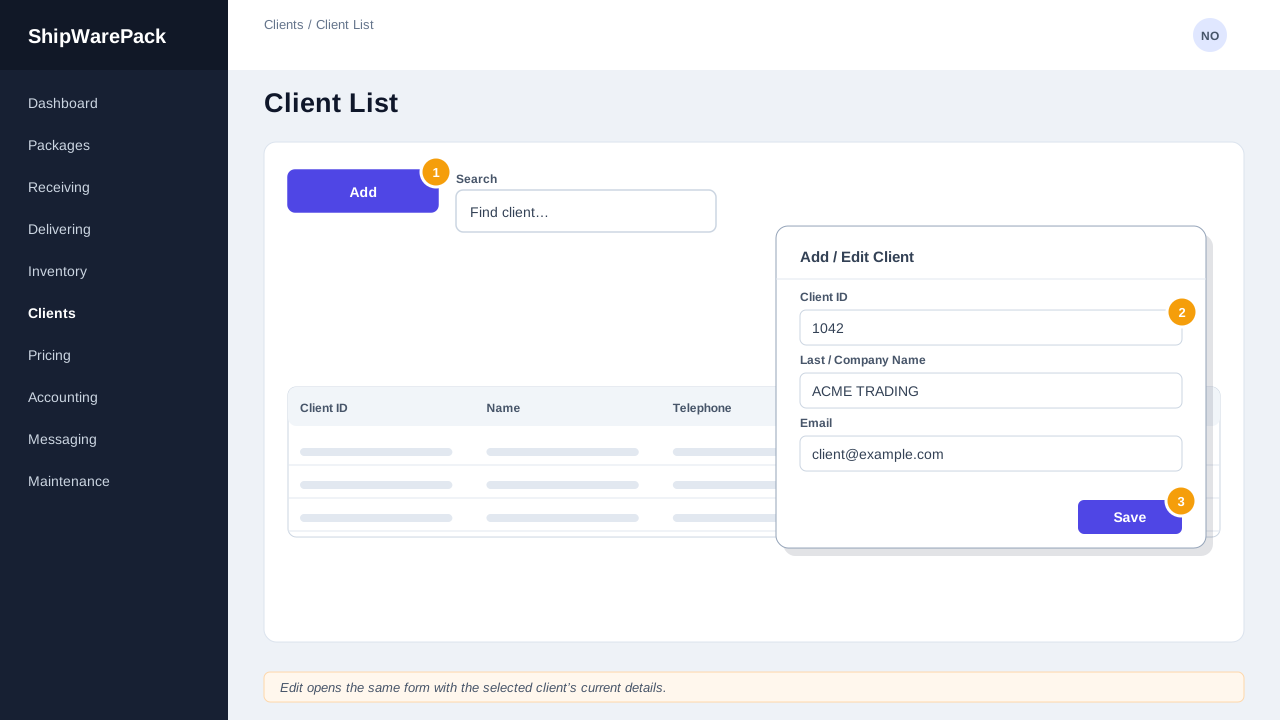
- Click Add at the top of the client list.
- Fill in the client's details in the popup form: Client Id (your own reference), Last/Company Name, First Name, Middle Name, Address, City, Country, Telephone, Email, ID Type, and ID Number.
- Click Save.
Only the Last Name field is required to save a new client from this list screen.
Editing a Client
- Find the client in the list and click Edit on that row.
- The same form opens, pre-filled with the client's current details.
- Update the fields as needed and click Save.
Cancelling
Click Cancel in the popup at any time to discard your changes without saving.
I need to add identification details later
You can leave ID Type / ID Number blank when first adding a client and fill them in later via Edit — for example, once verified in person.