Receive by Package
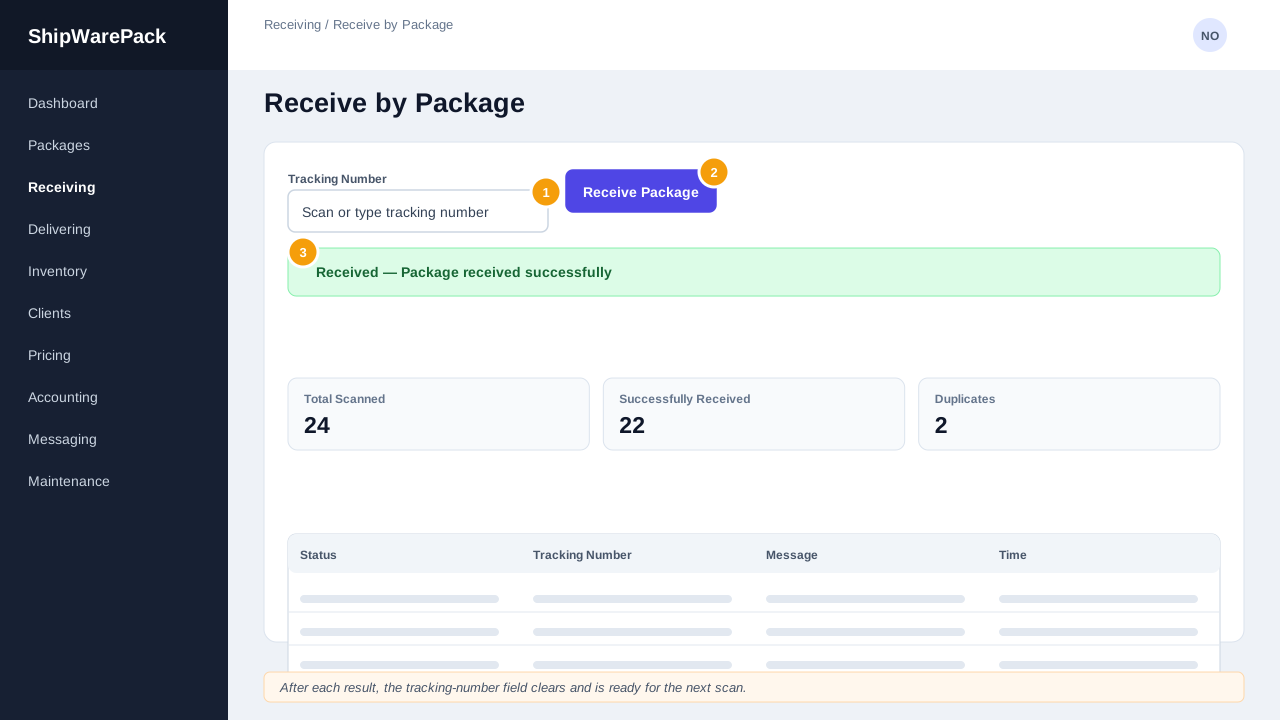
Use Receive by Package to receive packages one at a time by scanning or typing each tracking number, without needing to load a manifest first.
Accessing Receive by Package
In the sidebar, click Packages → Receive Packages → Receive by Package.
Receiving a Package
- Scan or type the tracking number into the field at the top of the page.
- Click Receive Package (or press Enter).
- The result appears immediately above the statistics cards:
- ✅ Received — the package was found and marked as received.
- ⚠️ Duplicate — this tracking number was already received; the message shows when and by whom.
- ❌ Exception — the tracking number could not be matched or something else went wrong.
- The field clears and refocuses automatically so you can scan the next package right away.
Statistics
Three cards track your progress for the current session:
- Total Scanned
- Successfully Received
- Duplicates
Scanned Packages Table
Every scan (successful, duplicate, or exception) is added to a table below, showing status, tracking number, message, and the time it was scanned. Use the search box to find a specific entry, or the colored badges (Success / Duplicate / Exception) as a visual key.
I got an 'Exception' result — what do I do?
Check that the tracking number was entered correctly. If it's correct but still fails, the package may not be logged/expected yet — contact your supervisor to confirm it should be arriving.