Pricing Sessions
Pricing Sessions let you price a whole batch of packages at once — by container, shipment, or date — in a spreadsheet-style grid, rather than one at a time.
Accessing Pricing Sessions
In the sidebar, click Pricing → Pricing by Session.
Browsing Sessions
The main screen lists your pricing sessions as cards, with controls to help you find the right one:
- Open / Closed tabs, each showing a count.
- Mode filters — All, Date, Container, or Shipment — to narrow the list to sessions of a particular kind.
- A search box to filter by reference (the date, container, or shipment name).
Each card shows the session's mode, status, reference, last-modified time, and a quick breakdown of Total / Priced / Unpriced packages with a progress bar. When a session reaches 100% priced, a note invites you to close it.
Starting a New Session
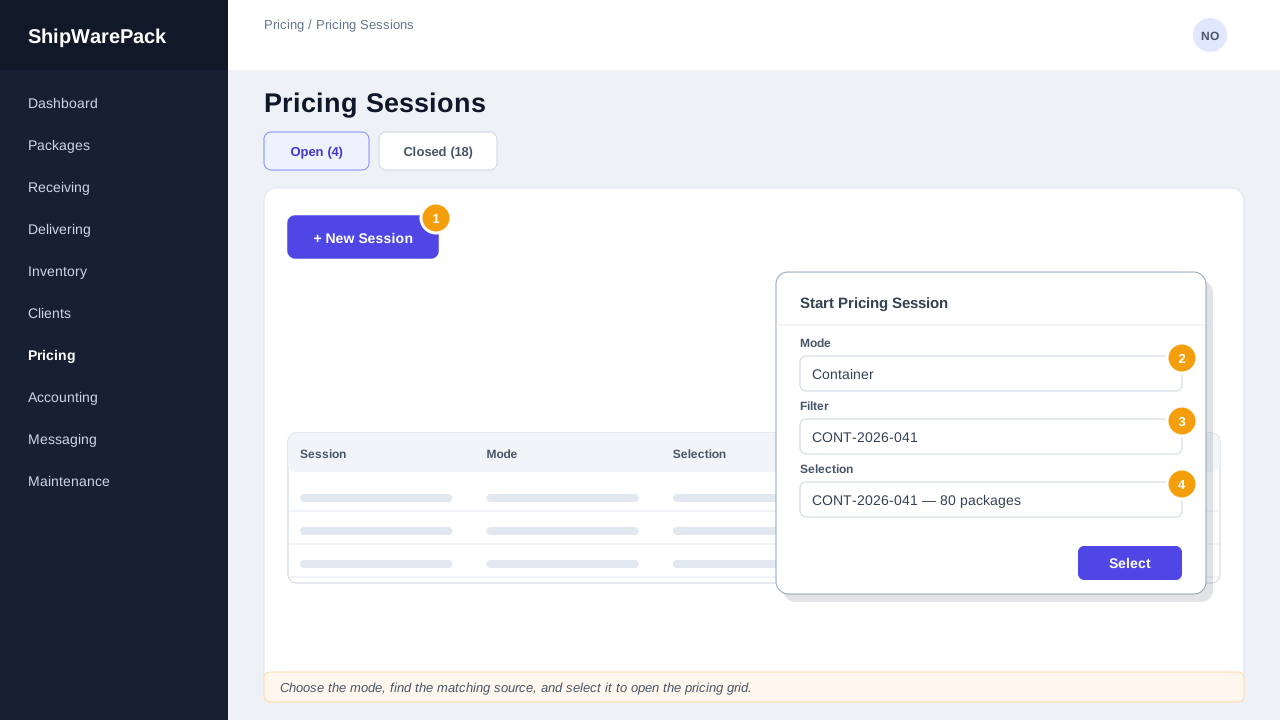
- Click + New Session.
- Choose a mode: Container, Shipment, or Date.
- Use the filter box to find the specific container, shipment, or date you want to price.
- Click Select on the matching row (or click the row itself) to open the pricing grid for that selection.
If a session already exists for that same container/shipment/date, it will be resumed automatically rather than duplicated.
The Pricing Grid
Once a session is open, you'll see a grid with one row per package: Client ID, Client Name, Tracking Number, Content, Quantity, Weight, Price, and Status.
- Click into the Price cell for a row and type a value, then move off the cell (or press Enter) to save it. Saved changes are reflected in the Status column immediately (Priced / Unpriced / Delivered).
- Packages already Delivered are locked 🔒 and cannot be re-priced from this grid.
- The status bar at the top of the grid shows how many packages are priced, unpriced, and delivered/locked, and confirms each save as it happens.
Toolbar Actions
| Button | Result |
|---|---|
| ← Back to Sessions | Returns to the session browser |
| Refresh | Reloads the current session's packages (only for open sessions) |
| Close Session | Closes the session, after a confirmation prompt |
| Excel | Exports the grid exactly as displayed |
Closing a Session
Click Close Session and confirm. Closed sessions become read-only — you can still open one to review it, but prices can no longer be changed. This is intended for sessions that are fully priced and finalized.
Can I reopen a closed session?
Closed sessions are read-only by design. If you need to change a price after closing, contact your tenant administrator.
Why can't I edit the price for one row?
That package has already been delivered. Delivered packages are locked to protect historical pricing — see Pricing Overview.