Move Package
Move Package is a quick, casual way to relocate one package at a time — no Inventory Session required.
Accessing Move Package
In the sidebar, click Inventory → Move.
Moving a Package
- Scan (or type) the location barcode you're moving packages into, and press Enter.
- Once the location is confirmed, the package field activates automatically — scan (or type) the package's tracking number and press Enter, or click Move Package.
- On success, the package field clears and refocuses so you can immediately scan the next one into the same location.
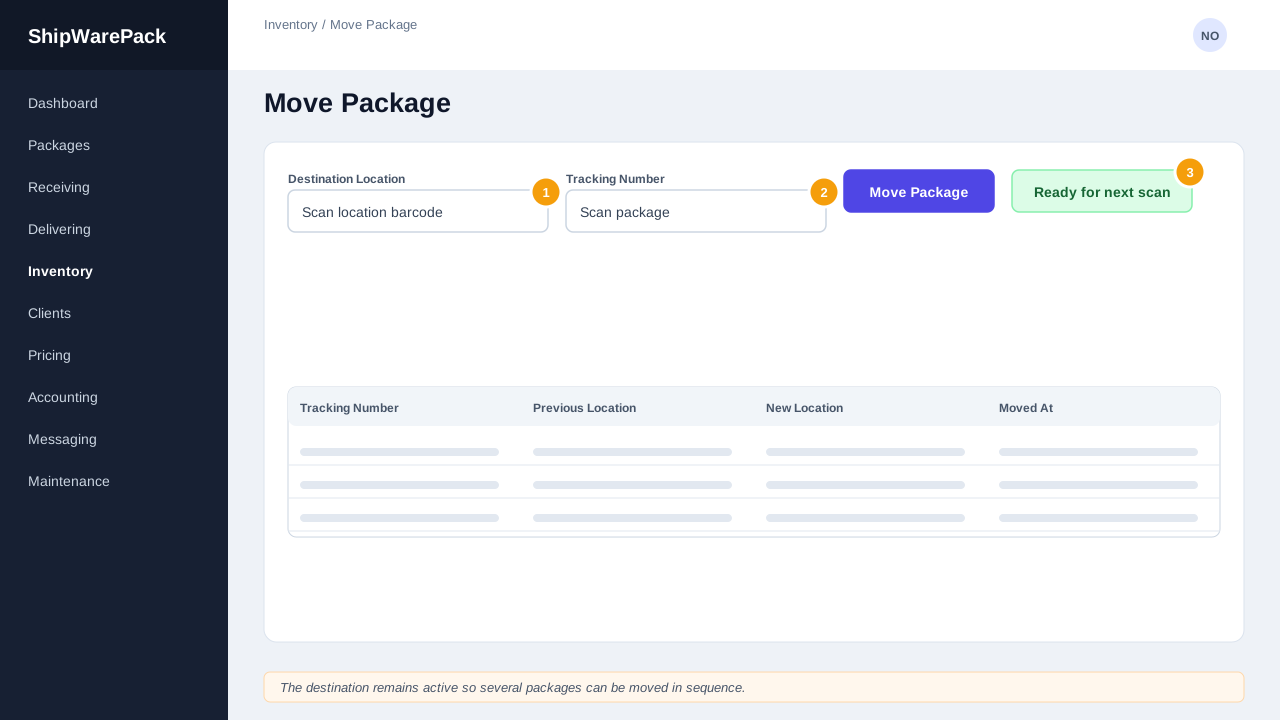
Click Change next to the active location at any time to switch to a different one.
Moved This Session
Below the scan form, a running list shows every package you've moved during this visit to the screen, with where it moved from and to. This list is not saved — it clears as soon as you leave or reload the page. It's a convenience for the current scanning session only, not a permanent record.
I need a permanent record of what was moved and by whom
Use an Inventory Session instead — it keeps a persistent, reviewable log of every scan, along with any exceptions found.
The package field says 'not found'
Double-check the tracking number. If the package genuinely isn't in the system yet, it needs to be received first — see Receiving Packages.