Logging In
Opening the Application
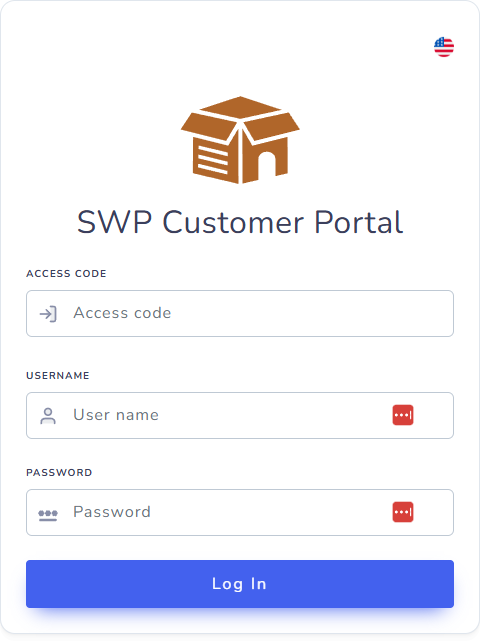
Open CustomerManager in your web browser using the URL provided by your tenant administrator. You will land on the Login page automatically.
Signing In
The login form asks for three pieces of information:
| Field | Description |
|---|---|
| Access Code | The code that identifies your tenant/customer account. Provided by your administrator. |
| Username | Your personal username. |
| Password | Your personal password. |
- Enter your Access Code.
- Enter your Username.
- Enter your Password.
- Click Log In.
If your credentials are correct, you will be taken to the home screen.
Login Issues
If you cannot log in, check that:
- The Access Code matches the one given to you by your administrator.
- Caps Lock is not on.
- You are using your username, not your email address.
- Your account has not been disabled. Contact your administrator if the problem persists.
Choosing a Language
Click the flag icon in the top-right corner of the login page to choose your preferred language. CustomerManager supports English, Spanish, French, Dutch, and Portuguese. Your language choice is remembered for future visits.
Logging Out
Click your user name or profile icon in the header, then select Logout. You will be returned to the Login page.
Session Persistence
Your session is saved in the browser for the duration configured by your administrator. If you close and reopen the browser tab, you may still be logged in. Always log out on shared computers.