Pricing Grid
Pricing Grid is a fast, Excel-style way to price a whole date's worth of packages directly in a spreadsheet-like grid, editing cells in place.
Accessing Pricing Grid
In the sidebar, click Pricing → Grid.
Loading Packages
- Choose a Date from the dropdown.
- Click Load.
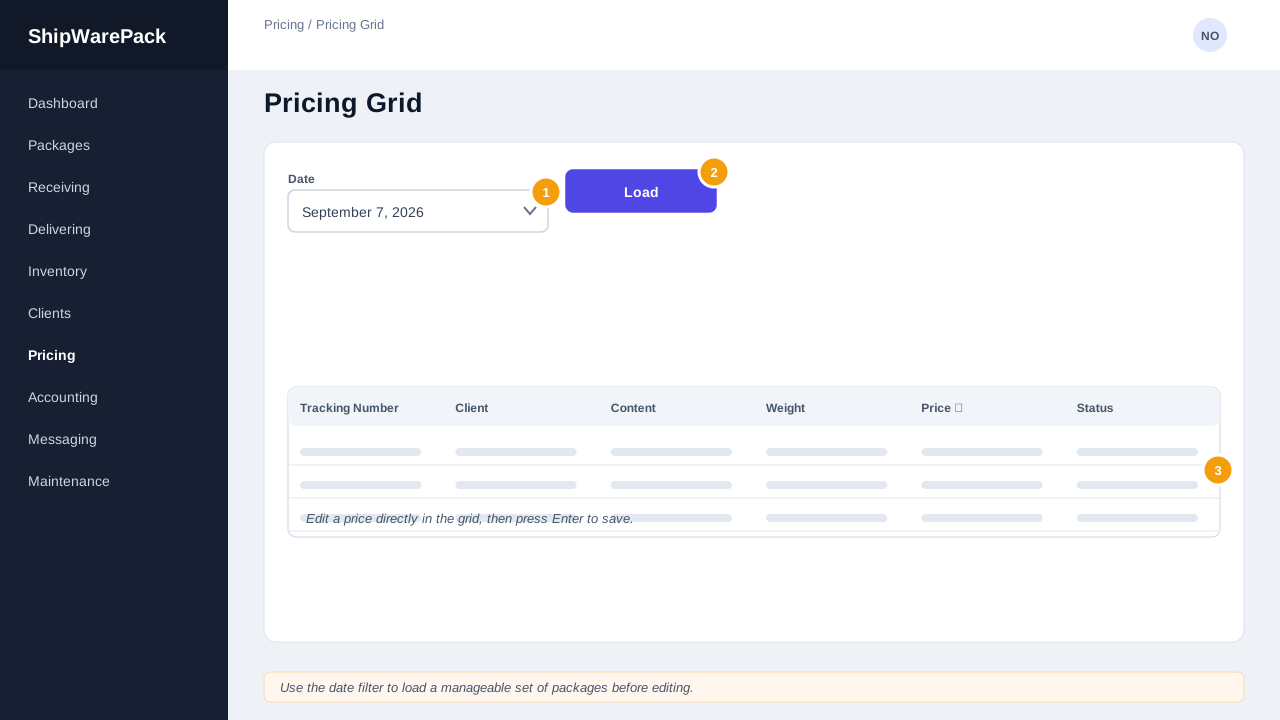
Every package for that date appears as a row, with columns for Tracking Number, Client, Content, Price, and Status.
Editing in the Grid
- Click into the Content or Price cell for any row and type a new value, then move off the cell (or press Enter) to save it immediately.
- The Price column shows a lock icon and greys out for packages that are already delivered — these can't be re-priced from the grid.
- A price of
0is shown in amber/italic as a visual cue that it hasn't really been priced yet; a real price turns green. - The Status column reflects each row's state: Unpriced, Priced, or Delivered (Locked).
Filtering and Column Width
Click the filter icon in any column header for Excel-style checkbox filtering by that column's values (tracking number, client, content, price, or status). Columns automatically stretch to fill the available width of your browser window.
How is this different from Pricing Sessions or Pricing Explorer?
Pricing Sessions groups packages into a trackable, closeable batch (by container, shipment, or date) with its own progress tracking. Pricing Explorer is the most full-featured option, adding document viewing and invoicing actions. Pricing Grid is the fastest option when you just want to plow through pricing an entire date's packages with minimal clicking, spreadsheet-style — it doesn't track session status or show documents.