Auto-Generate Invoices
Auto-Generate Invoices creates invoices in bulk — one invoice per client — instead of building them one at a time.
Accessing Auto-Generate
In the sidebar, click Accounting → Auto-Generate.
Generating a Batch
- Choose a mode: By Date (the default) or By Shipment.
- Select the specific date or shipment you want to invoice from.
- Click Generate Preview.
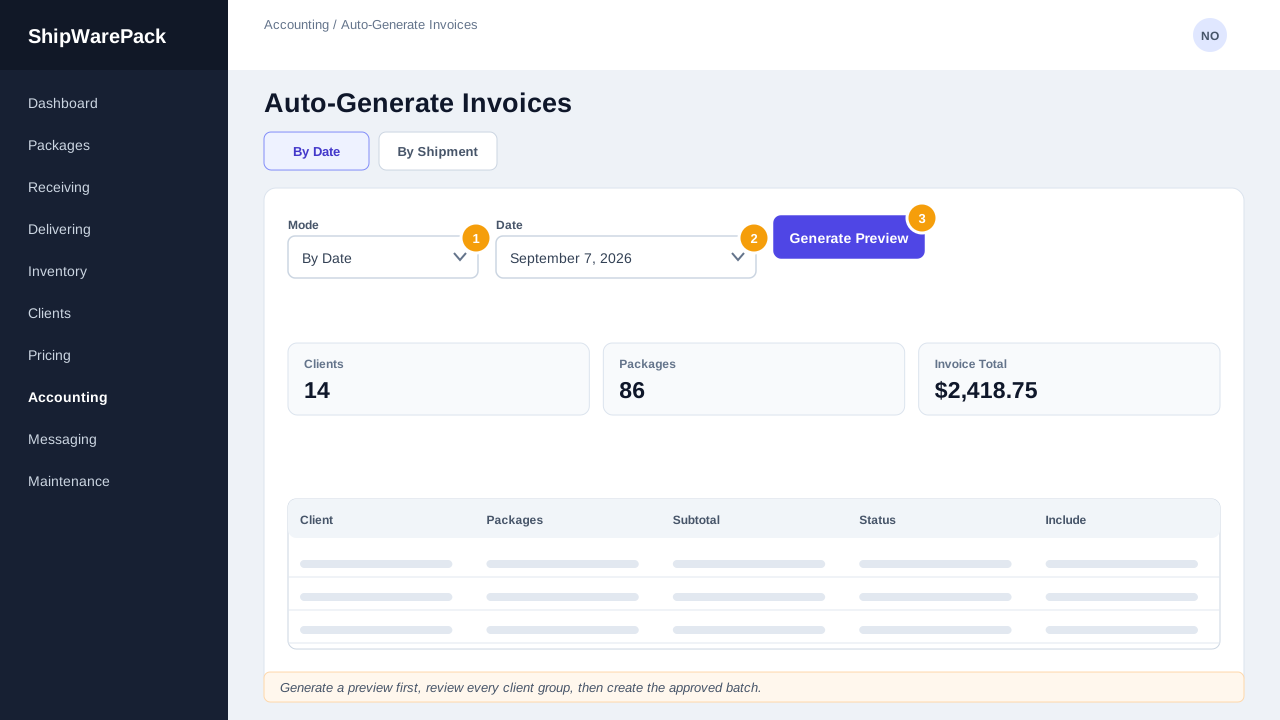
CustomerManager finds every client with priced, not-yet-invoiced packages in that date or shipment and groups each client's packages into its own invoice candidate — nothing is created yet.
Reviewing Before Creating
The review screen shows one card per client that will get an invoice, listing that client's line items and a running total. Nothing is saved at this point:
- Remove any line item you don't want invoiced by clicking the ✕ next to it.
- A client with no remaining line items is simply skipped — no empty invoice is created for them.
When everything looks right, click Confirm & Create All. Each client's group becomes its own real, saved invoice with its own invoice number, exactly as if you'd created them individually.
What if a client already has an open invoice?
Auto-Generate always creates a new invoice per client for the selected date or shipment — it doesn't add packages to an existing invoice. If you'd rather add to an existing invoice, use Pricing Explorer's Add to Invoice action on individual packages instead.
Nothing shows up after Generate Preview
This means no client had priced, uninvoiced packages for the date or shipment you selected. Check that the packages you expect have actually been priced — see Pricing Overview.