Receive by Container / Receive by Shipment
These two methods work the same way as Receive by Date, except the manifest you're working against is scoped to a single container or a single shipment rather than an entire ship date.
Accessing These Methods
In the sidebar, click Packages → Receive Packages, then choose Receive by Container or Receive by Shipment.
Workflow
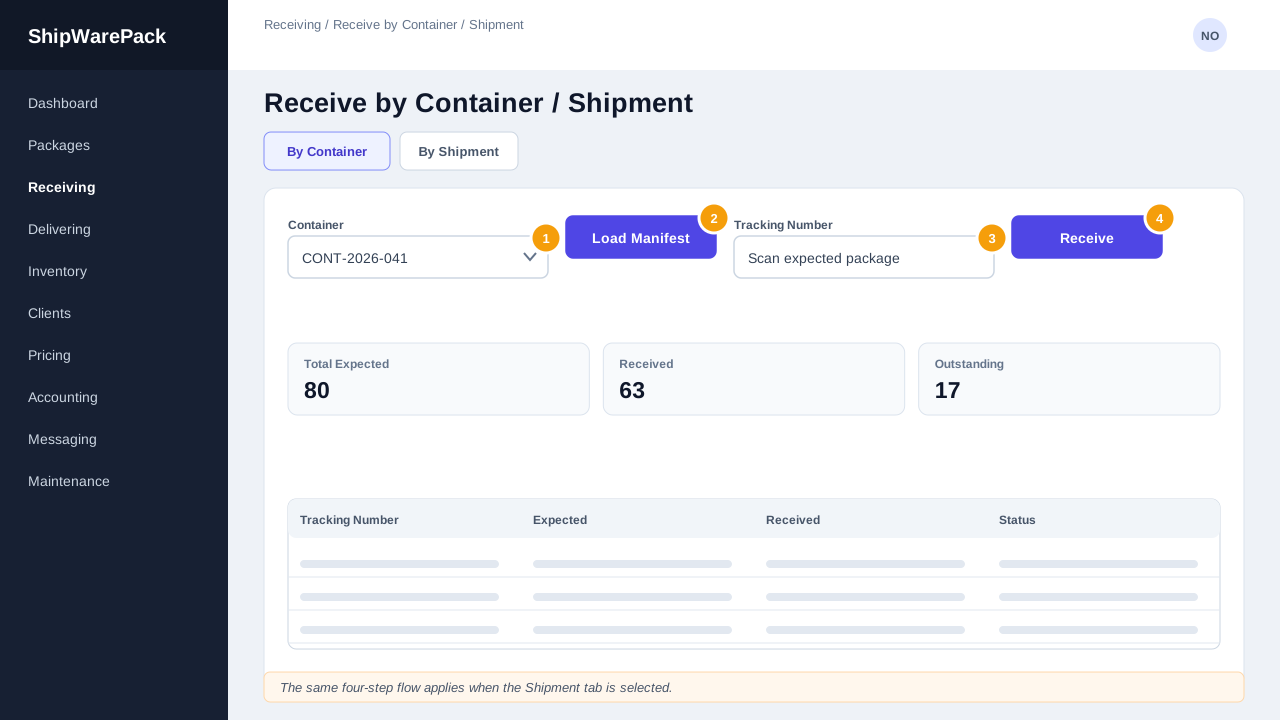
- Select the container (or shipment) you want to receive against.
- Load its manifest.
- Scan or type tracking numbers as packages arrive — each is checked off against that container's (or shipment's) expected contents.
- Track your progress using the Total Expected / Received / Outstanding cards, exactly as with Receive by Date.
When to Use Which Method
| Situation | Use |
|---|---|
| A single container has just arrived and needs unpacking | Receive by Container |
| An entire shipment (possibly multiple containers) needs to be worked through | Receive by Shipment |
| You need to receive everything expected on a calendar date, regardless of container/shipment | Receive by Date |
| You're scanning packages ad hoc with no manifest to check against | Receive by Package |
A scanned package doesn't belong to this container/shipment
It will be flagged rather than silently accepted. Double-check the tracking number, and if it's correct, the package may belong to a different container or shipment — look it up in the Package Explorer to confirm where it should go.