Payments
Accessing Payments
In the sidebar, click Accounting → Payments.
Applying a Payment
Payments are always applied from inside the invoice itself, not from a standalone form:
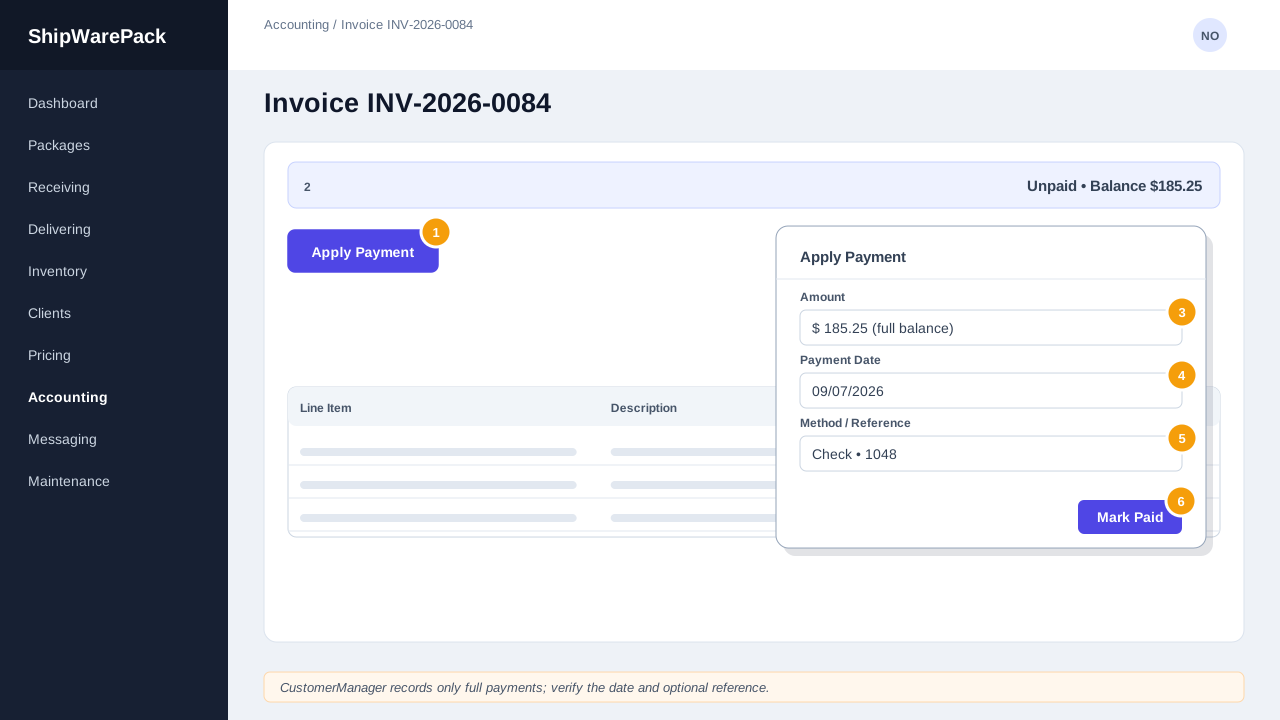
- Open the invoice — either from the Invoice List, or click Open & Apply next to an outstanding invoice on this Payments screen.
- Click Apply Payment.
- The Amount is pre-filled with the invoice's full total and can't be changed — CustomerManager doesn't support partial payments; applying a payment always marks the invoice paid in full.
- Confirm or change the Payment Date (defaults to today).
- Optionally record a Payment Method (Cash, Check, Wire, Card, or Other) and a Reference (such as a check number).
- Click Mark Paid.
The invoice's status changes to Paid, its line items freeze, and it becomes watermarked — see Creating & Managing Invoices.
This Screen
The Payments screen has two parts:
- Recent Payments — every payment that's been applied, most recent first, with the client, invoice number, date, amount, method, and reference. Click View on any row to jump back to that invoice.
- Outstanding Invoices — every Unpaid invoice, so you can see at a glance what still needs to be collected. Click Open & Apply to jump straight to an invoice's payment form.
Can I record a partial payment?
No — CustomerManager's payment model is all-or-nothing. Applying a payment always marks the full invoice total as paid. If a client is paying in installments, wait until the full amount has been collected before recording the payment.