Deliver to Client
Use Deliver to Client to scan packages out to the client who is picking them up.
Accessing Deliver to Client
In the sidebar, click Packages → Deliver to Client.
Selecting the Client
Before you can scan any packages, a client must be selected:
- If no client is selected, a client selector opens automatically.
- Search for and choose the correct client.
- The header bar confirms who you're Delivering To.
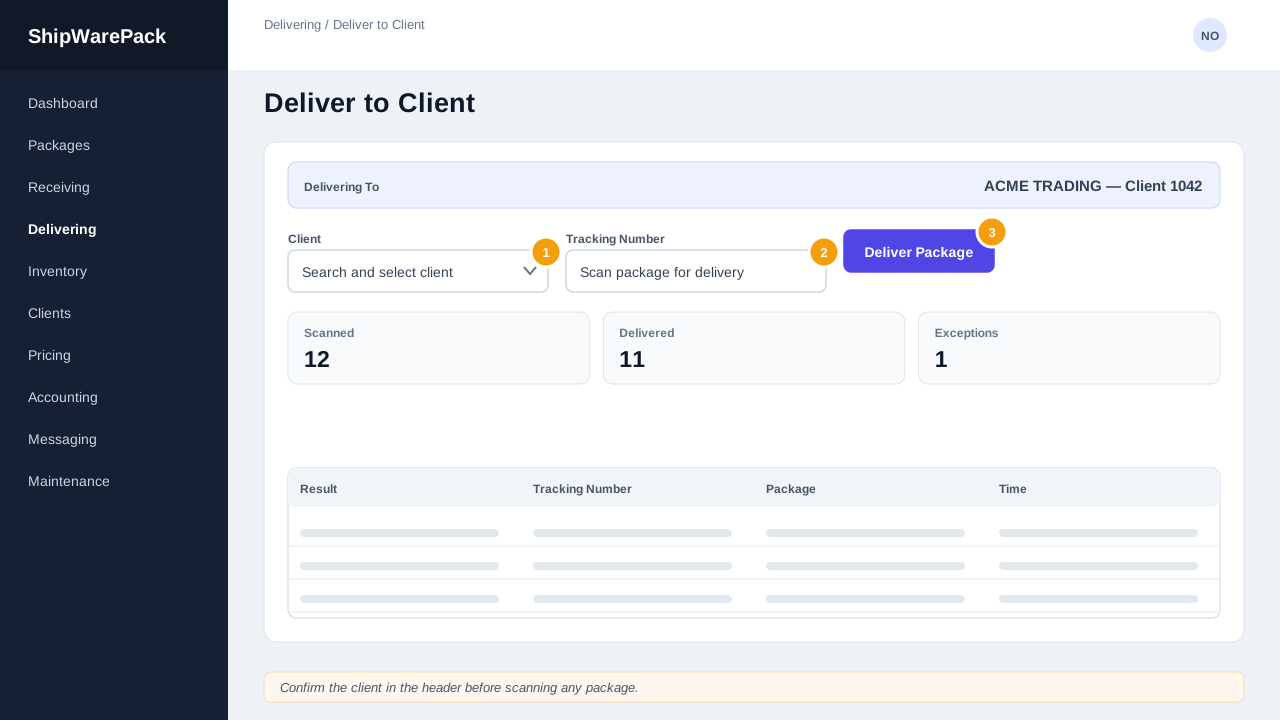
Use Change Client at any time to switch to a different client (for example, if the wrong client was selected), or Clear Client to remove the selection.
Warning
If you close the client selector without choosing anyone, you'll be returned to the previous page — a client must be selected to deliver packages.
Scanning Deliveries
With a client selected, scan or type each tracking number in the scanner panel. Every successful scan is added to the Scanned Deliveries list below, showing the time, tracking number, and carrier.
Reviewing the Session
The Scanned Deliveries panel keeps a running count and list for your current session, so you can confirm exactly what was handed to the client before they leave.
I delivered a package to the wrong client
Use Reverse Delivery to undo the delivery scan, then redo it under the correct client.