Managing Users
Maintenance → Users lets you view, add, and edit the user accounts associated with your customer account, and reset their passwords.
Accessing User Management
In the sidebar, click Maintenance → Users.
Adding a User
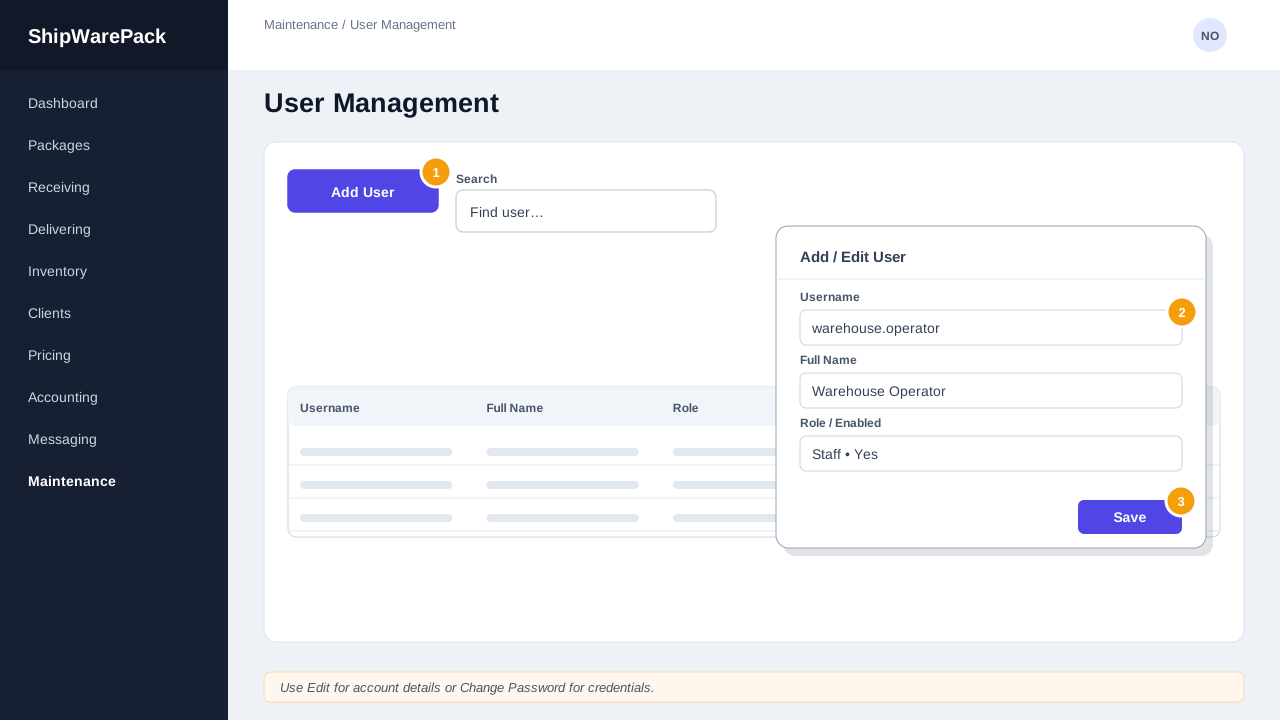
- Click Add User.
- Fill in the user's details in the popup: username, full name, role, and whether the account is enabled.
- Click Save.
A temporary password is generated automatically for the new account — share it with the user securely and have them change it after their first login (see Logging In).
Editing a User
- Find the user in the list and click Edit on that row.
- Update their details and click Save.
Changing a Password
- Find the user in the list and click Change Password on that row.
- Set the new password in the popup and confirm.
Searching
Use the search box above the table to filter by username, full name, or role.
A user can't log in
Confirm their account is Enabled in the list, and that they're using the correct Access Code, Username, and Password (see Logging In). If needed, use Change Password to issue them a new one.