Reverse Delivery
Use Reverse Delivery to undo a delivery that was scanned in error — for example, a package delivered to the wrong client, or scanned by mistake.
Accessing Reverse Delivery
In the sidebar, click Packages → Reverse Delivery.
Reversing a Delivery
- Scan or type the Tracking Number of the package that was delivered incorrectly.
- Enter a Reason for Reversal. A common default reason ("Delivered to wrong client") is pre-filled, but you can change it to describe what actually happened.
- Click Submit Reversal.
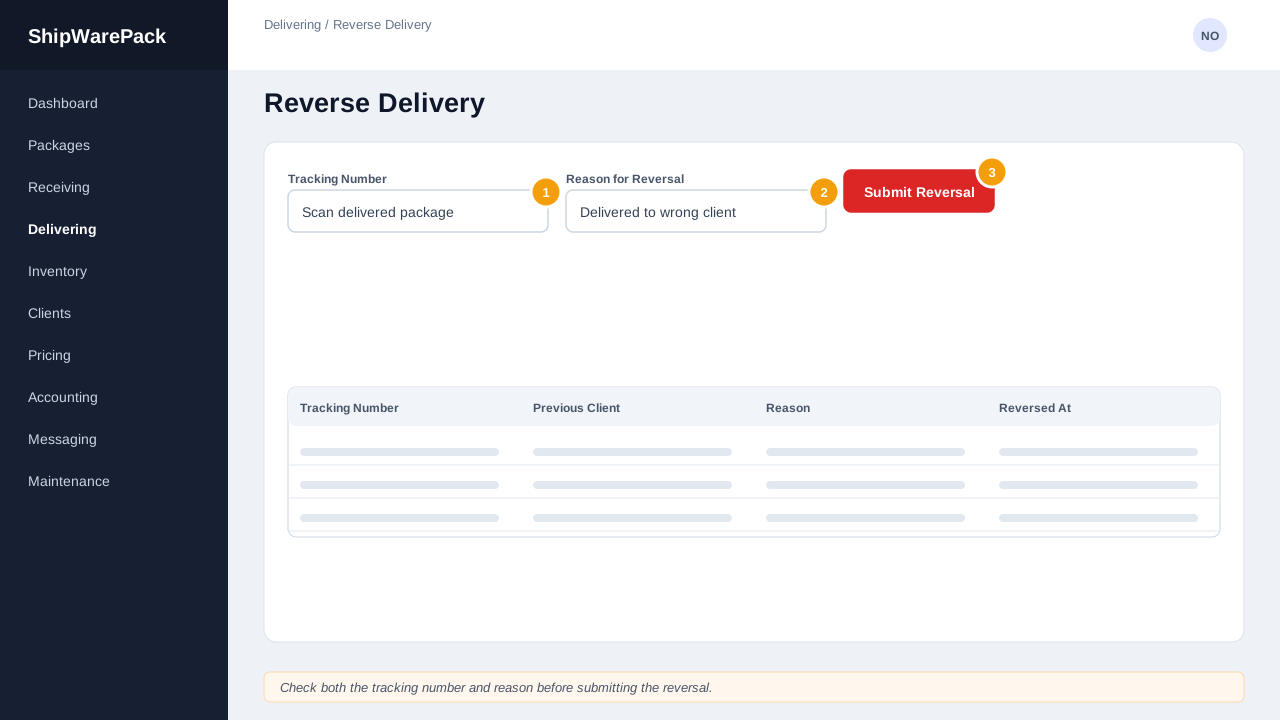
The package's delivery is undone, and the reversal is logged.
Reviewing Reversals
The Reversed Deliveries panel below the form lists every reversal made in your current session, with the time, tracking number, and reason — useful for double-checking your work before moving on.
Warning
Reversing a delivery does not automatically re-deliver the package to the correct client. After reversing, go to Deliver to Client and scan the package again under the correct client.