Scan to Price
Scan to Price lets you look up a single package by tracking number and price it (and optionally adjust its content) on the spot.
Accessing Scan to Price
In the sidebar, click Pricing → Scan to Price.
Looking Up a Package
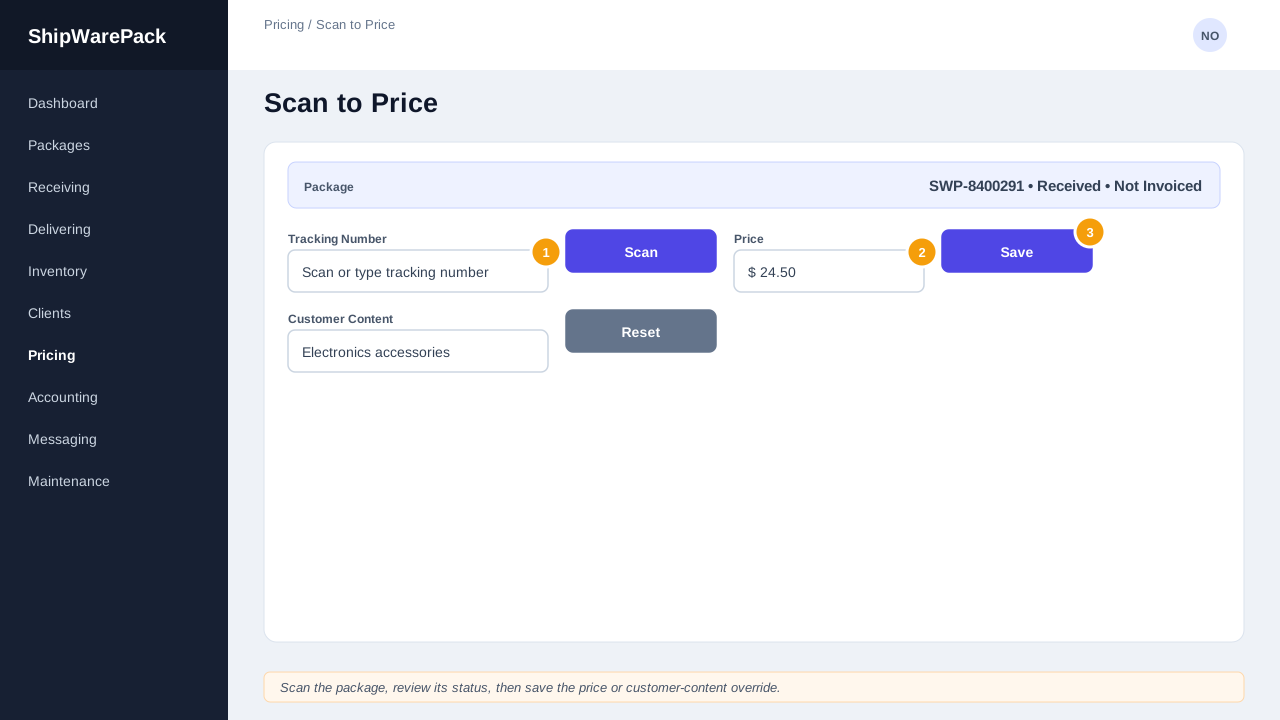
- Scan or type the tracking number.
- Click Scan (or press Enter).
Depending on the result, you'll see:
- The package's details, if found and eligible for pricing.
- Not Found — the tracking number doesn't match any package.
- Already Delivered 🔒 — the package has been delivered and its price/content are locked.
- Not Yet Received — the package hasn't been received at the warehouse yet.
- A lookup error, if something else went wrong.
Package Details
When a package is found, you'll see its tracking number, carrier, a logistics status badge (its stage in the pipeline), and a separate priced/unpriced badge — these two are always shown independently, since one doesn't determine the other.
Setting the Price
- Enter the price in the Price field.
- Click Save (or press Enter).
If the package is locked (already delivered), the price field is replaced with a 🔒 notice and cannot be edited.
Editing Customer Content
Below the price, a Package Content card lets you override the content description, quantity, and weight as recorded for your customer account:
- Edit Content, Quantity, and/or Weight as needed. The tenant's original values are shown underneath each field for reference.
- Click Save to apply your changes, or Reset to clear your overrides and revert to the tenant's original values.
A blank field always means "use the tenant's value" — you don't need to re-enter a value you don't want to change.
If the package is Delivered, this section is also locked and shows the 🔒 notice instead of editable fields.
Attachments
If any documents have been attached to the package, they're listed at the bottom of the card. Click a document's name to open it in a new tab.
Scanning the Next Package
Click Scan Next to clear the current result and return focus to the tracking number field, ready for your next scan.
Why do I see two different status badges?
The logistics badge (Logged/Received/Shipped/etc.) and the priced/unpriced badge track two independent facts. A package can be Priced while still Logged, or Unpriced while already Shipped — see Pricing Overview.