Inventory Sessions
An Inventory Session is a formal, audited count: you open a session, scan packages into locations, and the system tracks exactly who scanned what and flags anything unexpected — such as a package that isn't actually in the system yet, or one that's already been delivered.
Requires Manager or Owner
Opening, closing, or deleting a session requires the Manager or Owner role. Everyone else can still view session history.
Accessing Inventory Sessions
In the sidebar, click Inventory → Sessions.
Session List
The list shows every session with its status (Open or Closed), who opened/closed it and when, how many packages were scanned, and how many exceptions were found. Summary chips above the list show the currently open session (if any), total sessions, total packages scanned, and total exceptions across all sessions.
Only one session can be open at a time. If a session is already open, New Session is disabled until it's closed.
Opening a Session and Scanning
- Click New Session to open one and go straight to its detail screen.
- Scan (or type) a location barcode and press Enter / click the scan button. The location's packages are grouped together as you go.
- Once a location is active, scan (or type) a package's tracking number and press Enter / click Scan Package.
- Keep scanning packages into the same location, or click Change to switch to a different location.
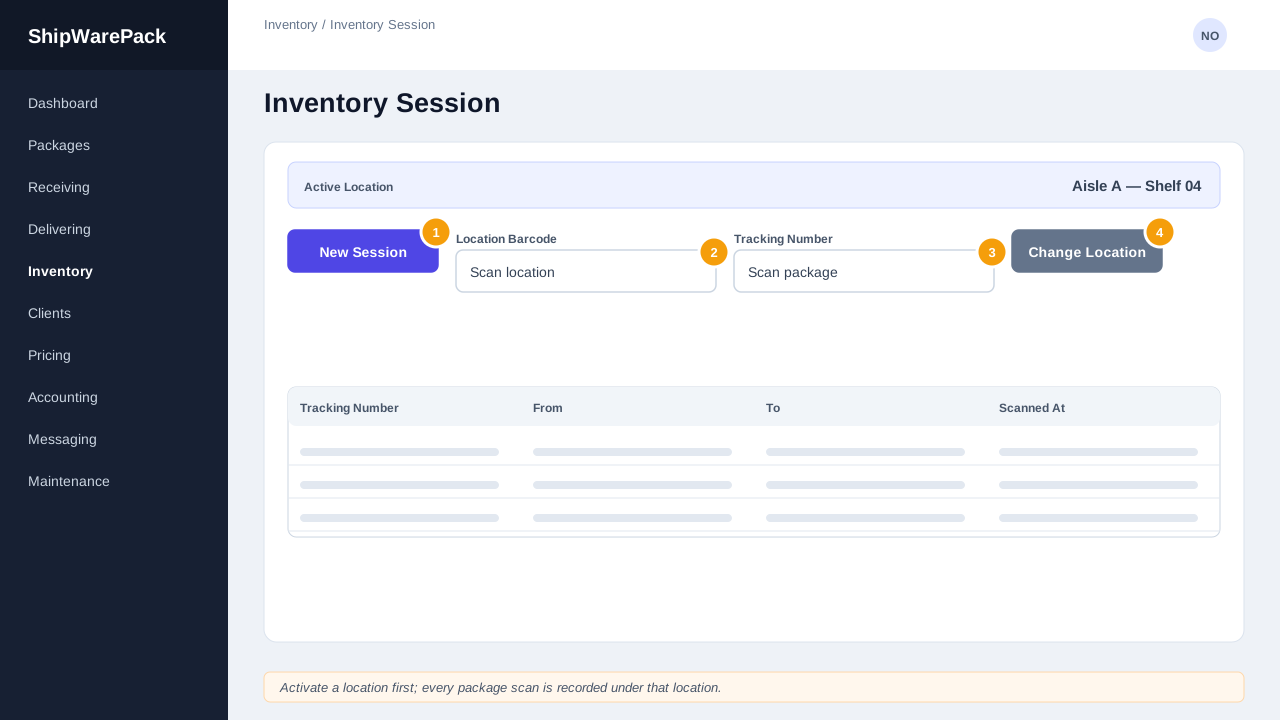
Each scanned package is checked against the system and marked with one of three results:
| Result | Meaning |
|---|---|
| Matched | The package is a known, currently-received package — expected. |
| Not Received | The tracking number isn't recognized as received — worth investigating. |
| Already Delivered | The package was already marked delivered — it shouldn't physically be in the warehouse. |
Scanned items are grouped by location as you work, and any single scan can be removed with the trash icon if it was a mistake.
Closing a Session
Click Close Session and confirm. A closed session becomes read-only — you can still open it to review what was scanned, but no further scans or edits are possible.
Deleting a Session
A session can only be deleted after it's been closed. Click Delete Session and confirm.
Do I need to use a session for a quick single-package move?
No — for relocating one or two packages without a formal audit trail, use Move Package instead. Sessions are for deliberate, trackable counts.